> For the complete documentation index, see [llms.txt](https://themessupport.gitbook.io/lollipop-theme/llms.txt). Markdown versions of documentation pages are available by appending `.md` to page URLs; this page is available as [Markdown](https://themessupport.gitbook.io/lollipop-theme/sections/deal-banner.md).
# Deal banner
A countdown-timer banner for flash sales — heading, body text, countdown clock, and CTA buttons.
## How to access
1. **Go to** Shopify Admin → Online Store → Themes.
2. **Click** Customize on your active theme.
3. Click **Add section** on the page and choose **Deal banner**.
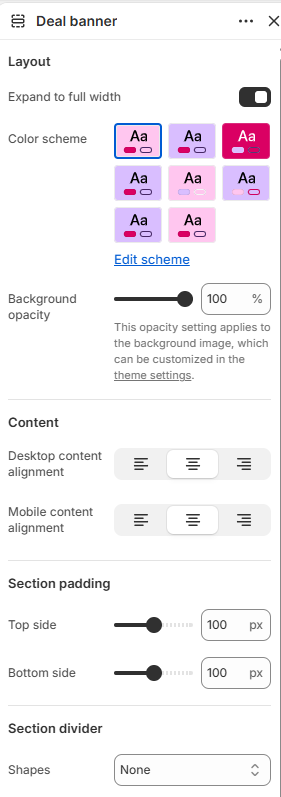
## Section Settings
| Setting | Description |
| ------------------------- | ------------------------------------------------------------------------------------------------------------------------------------------- |
| Layout | |
| Expand to full width | Extends the section to the full browser width. |
| Color scheme | Sets the background and text colors. |
| Background opacity | Controls the background opacity. |
| Content | |
| Desktop content alignment | Alignment of the section content on desktop: Left, Center, or Right. |
| Mobile content alignment | Alignment of the section content on mobile: Left, Center, or Right. |
| Section padding | |
| Top side | Space above the section. |
| Bottom side | Space below the section. |
| Section divider | |
| Shapes | Adds a decorative divider to the section. Choose from Curve top, Curve bottom, Curve both, None, Border top, Border bottom, or Both border. |
## Blocks
Add blocks to this section in the theme editor. Each block is a separate item you can add, remove, and reorder.
### Heading
Displays the main heading for the deal banner.
| Setting | Description |
| ------------ | ---------------------------------------------------------------------- |
| Heading | Sets the main heading text. |
| Heading size | Controls the size of the heading. Choose from Small, Medium, or Large. |
### Text
Displays supporting text below the heading.
| Setting | Description |
| ----------- | ------------------------------------------------------- |
| Description | Adds supporting text to provide additional information. |
### Deal timer
Displays a countdown timer for the promotion.
| Setting | Description |
| ------------- | --------------------------------------------------------------------------- |
| Deal end date | Sets the date when the countdown ends. Enter the date in DD-MM-YYYY format. |
### Button
Adds a call-to-action button to the deal banner.
| Setting | Description |
| ------------------------------ | -------------------------------------------------------------------------------- |
| Button label | Sets the button text. Leave blank to hide the button. |
| Button link | Selects the page or URL the button links to. |
| Open this link in a new window | Opens the linked page in a new browser tab. |
| Button style | Sets the appearance of the button. Choose from Primary, Secondary, or Hyperlink. |
## Common Questions
How do I set the countdown end date?
In the **Deal timer** block, enter the date in DD-MM-YYYY format, e.g. `31-12-2025`.
.png?alt=media)
.png?alt=media)
.png?alt=media)
.png?alt=media)