> For the complete documentation index, see [llms.txt](https://themessupport.gitbook.io/lollipop-theme/llms.txt). Markdown versions of documentation pages are available by appending `.md` to page URLs; this page is available as [Markdown](https://themessupport.gitbook.io/lollipop-theme/sections/image-gallery.md).
# Image gallery
Displays a gallery of images in a responsive grid or carousel layout.
### How to access
1. **Go to** Shopify Admin → Online Store → Themes.
2. **Click** Customize on your active theme.
3. Click **Add section** and choose **Image gallery**.
### Section Settings
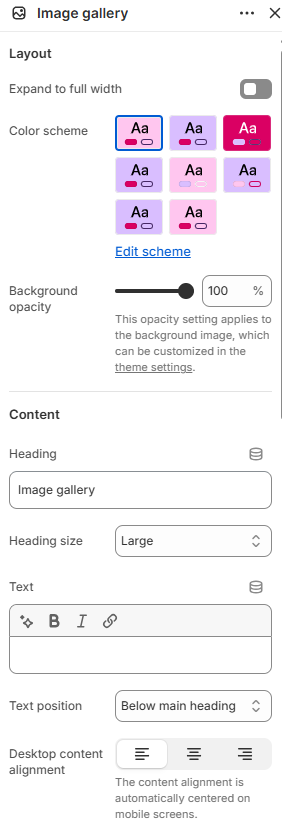
| Setting | Description |
| ------------------------- | ------------------------------------------------------------------------------------------------------------------------------------------- |
| Layout | |
| Expand to full width | Extends the section to the full browser width. |
| Color scheme | Sets the background and text colors. |
| Background opacity | Controls the background opacity. |
| Content | |
| Heading | Sets the section heading. |
| Heading size | Size of the heading: Small, Medium, or Large. |
| Text | Adds supporting text. |
| Text position | Displays the text above or below the heading. |
| Desktop content alignment | Alignment of the section content: Left, Center, or Right. Content is automatically centered on mobile. |
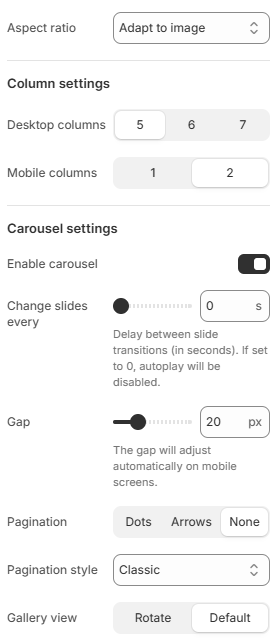
| Aspect ratio | Sets the image aspect ratio. Choose from Square, Portrait, or Adapt to image. |
| Column settings | |
| Desktop columns | Number of columns displayed on desktop: 5, 6, or 7. |
| Mobile columns | Number of columns displayed on mobile: 1 or 2. |
| Carousel settings | |
| Enable carousel | Displays the images in a carousel. |
| Change slides every | Automatically changes slides after the selected number of seconds. Set to 0 to disable autoplay. |
| Gap | Controls the spacing between images. |
| Pagination | Sets the carousel navigation: Dots, Arrows, or None. |
| Pagination style | Sets the pagination style. |
| Gallery view | Sets the gallery layout: Rotate or Default. |
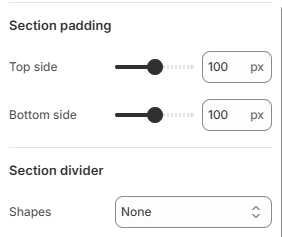
| Section padding | |
| Top side | Space above the section. |
| Bottom side | Space below the section. |
| Section divider | |
| Shapes | Adds a decorative divider to the section. Choose from Curve top, Curve bottom, Curve both, None, Border top, Border bottom, or Both border. |
### Blocks
Add blocks to this section in the theme editor. Each block is a separate item you can add, remove, and reorder.
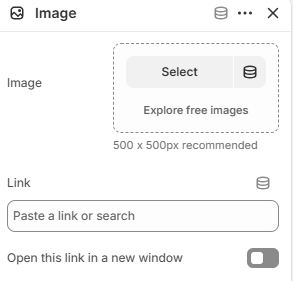
#### Image
Displays an image in the gallery.
| Setting | Description |
| ------------------------------ | ------------------------------------------- |
| Image | Selects the image displayed in the gallery. |
| Link | Selects the page or URL the image links to. |
| Open this link in a new window | Opens the linked page in a new browser tab. |