> For the complete documentation index, see [llms.txt](https://themessupport.gitbook.io/lollipop-theme/llms.txt). Markdown versions of documentation pages are available by appending `.md` to page URLs; this page is available as [Markdown](https://themessupport.gitbook.io/lollipop-theme/sections/marquee.md).
# Marquee
Displays continuously scrolling text with optional separators to highlight announcements, promotions, or messages.
## How to access
1. **Go to** Shopify Admin → Online Store → Themes.
2. **Click** Customize on your active theme.
3. Click **Add section** and choose **Marquee**.
## Section Settings
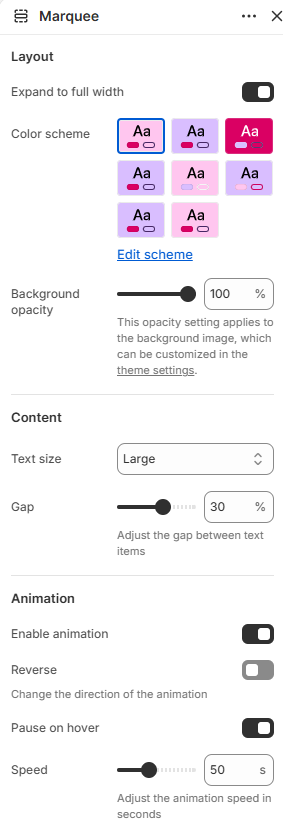
| Setting | Description |
| -------------------- | ------------------------------------------------------------------- |
| Layout | |
| Expand to full width | Extends the section to the full browser width. |
| Color scheme | Sets the background and text colors. |
| Background opacity | Controls the background opacity. |
| Content | |
| Text size | Sets the text size: Small, Medium, or Large. |
| Gap | Controls the spacing between text items. |
| Animation | |
| Enable animation | Enables continuous scrolling animation. |
| Reverse | Reverses the scrolling direction. |
| Pause on hover | Pauses the scrolling animation when the cursor is over the section. |
| Speed | Controls the scrolling animation speed. |
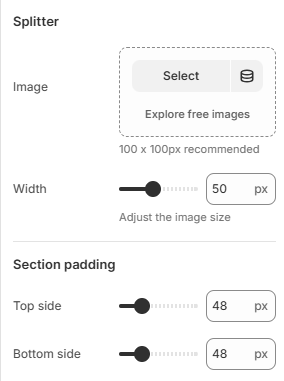
| Splitter | |
| Image | Selects an image displayed between text items. |
| Width | Controls the width of the splitter image. |
| Section padding | |
| Top side | Space above the section. |
| Bottom side | Space below the section. |
| Custom CSS | |
## Blocks
Add blocks to this section in the theme editor. Each block is a separate item you can add, remove, and reorder.
### Text
Adds a scrolling text item to the marquee.
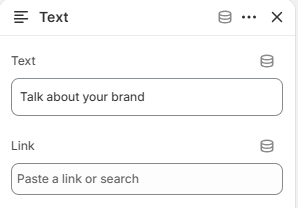
| Setting | Description |
| ------- | ------------------------------------------ |
| Text | Sets the scrolling text. |
| Link | Selects the page or URL the text links to. |