> For the complete documentation index, see [llms.txt](https://themessupport.gitbook.io/lollipop-theme/llms.txt). Markdown versions of documentation pages are available by appending `.md` to page URLs; this page is available as [Markdown](https://themessupport.gitbook.io/lollipop-theme/sections/shoppable-video.md).
# Shoppable video
Displays shoppable videos with optional product information below or over each video.
## How to access
1. **Go to** Shopify Admin → Online Store → Themes.
2. **Click** Customize on your active theme.
3. Click **Add section** and choose **Shoppable videos**.
## Section Settings
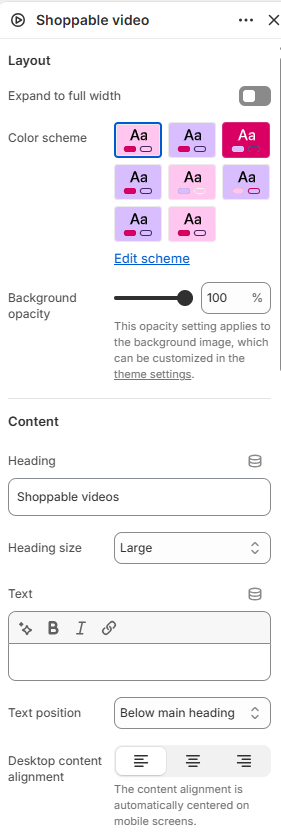
| Setting | Description |
| ------------------------- | ------------------------------------------------------------------------------------------------------------------------------------------- |
| Layout | |
| Expand to full width | Extends the section to the full browser width. |
| Color scheme | Sets the background and text colors. |
| Background opacity | Controls the background opacity. |
| Content | |
| Heading | Sets the section heading. |
| Heading size | Size of the heading: Small, Medium, or Large. |
| Text | Adds supporting text. |
| Text position | Displays the text above or below the heading. |
| Desktop content alignment | Alignment of the section content: Left, Center, or Right. Content is automatically centered on mobile. |
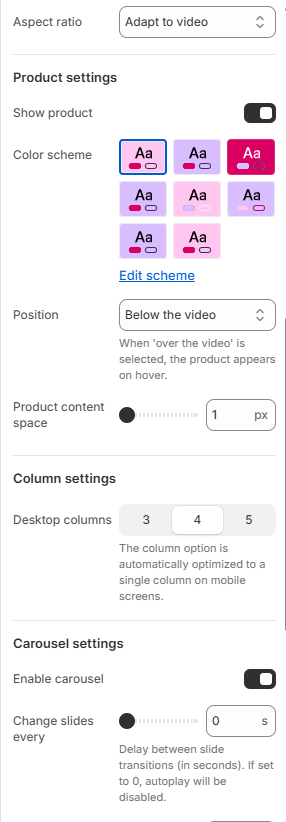
| Aspect ratio | Sets the video aspect ratio. Choose from Adapt to video, Square, or Portrait. |
| Product settings | |
| Show product | Shows the selected product with the video. |
| Color scheme | Sets the color scheme for the product card. |
| Position | Displays the product card Above the video, Below the video, Over the video, Left of the video, or Right of the video. |
| Product content space | Controls the spacing between the video and the product information. |
| Column settings | |
| Desktop columns | Number of columns displayed on desktop: 3, 4, or 5. |
| Carousel settings | |
| Enable carousel | Displays the videos in a carousel. |
| Change slides every | Automatically changes slides after the selected number of seconds. Set to 0 to disable autoplay. |
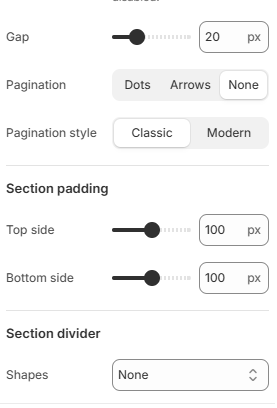
| Gap | Controls the spacing between videos. |
| Pagination | Sets the carousel navigation: Dots, Arrows, or None. |
| Pagination style | Sets the pagination style: Classic or Modern. |
| Section padding | |
| Top side | Space above the section. |
| Bottom side | Space below the section. |
| Section divider | |
| Shapes | Adds a decorative divider to the section. Choose from Curve top, Curve bottom, Curve both, None, Border top, Border bottom, or Both border. |
## Blocks
Add blocks to this section in the theme editor. Each block is a separate item you can add, remove, and reorder.
### Video
Displays a shoppable video with an optional linked product.
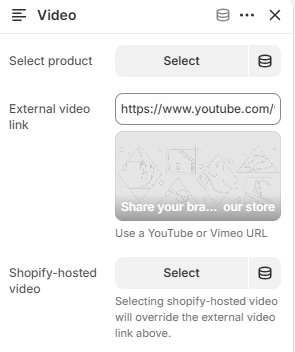
| Setting | Description |
| -------------------- | ---------------------------------------------- |
| Select product | Selects the product associated with the video. |
| External video link | Adds a YouTube or Vimeo video using its URL. |
| Shopify-hosted video | Selects a video uploaded to Shopify Files. |